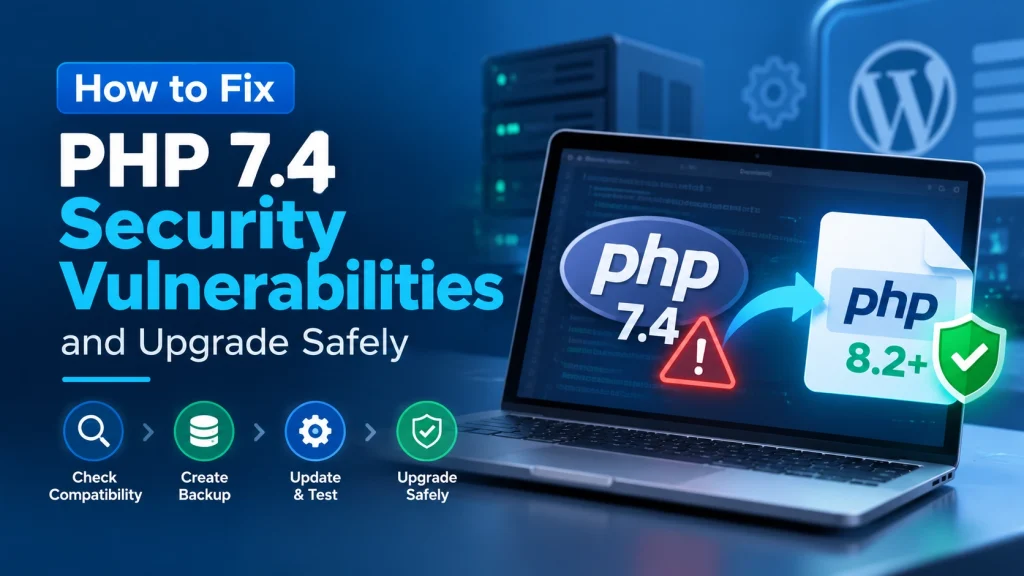
If your website is still running PHP 7.4, it is worth reviewing your setup and planning an upgrade. PHP 7.4 reached its official end of life on November 28, 2022, meaning the PHP project no longer provides regular security support for this branch
That does not mean you should panic or immediately rebuild your entire website. In many cases, businesses can move from PHP 7.4 to a supported PHP version through a controlled upgrade process.
The key is to understand what your website currently uses, check compatibility, create a reliable backup, and test the upgrade properly.
Contents
hide
Why PHP 7.4 Security Matters
PHP is the server-side programming language used by WordPress and many other websites. It handles important parts of a website, including database communication, forms, authentication, and application logic. When a PHP version reaches end of life, it no longer receives security fixes from the PHP project. PHP’s official documentation recommends upgrading unsupported branches because older releases may expose websites to vulnerabilities and bugs that have been fixed in newer versions. For a business website, outdated server software can become a maintenance and security concern. The solution is not simply to worry about every vulnerability. Instead, businesses should make sure their website is running on a supported and compatible PHP version.1. Check Which PHP Version Your Website Uses
Before making any changes, find out which PHP version your website is currently running. For WordPress websites, you can usually check this through:- WordPress Site Health
- Your hosting control panel
- Server information
- Hosting support
- A trusted development environment
2. Review WordPress, Plugins, and Themes
PHP upgrades can sometimes expose compatibility problems with older website components. Before upgrading, review your:- WordPress core
- Plugins
- Themes
- Custom PHP code
- Page builders
- APIs and integrations
- Ecommerce functionality
3. Create a Full Backup
A complete backup should be part of your PHP upgrade process. Before changing the PHP version, make sure you have a recent backup of your:- WordPress database
- Website files
- Media uploads
- Important configuration
- Custom code
4. Test the PHP Upgrade Before Going Live
For an important business website, testing should come before changing the production environment. If your hosting provider supports staging, create a staging copy of the website and test the new PHP version there first. Check important functionality such as:- Homepage and main pages
- Contact forms
- Login and user areas
- WooCommerce checkout
- Payment integrations
- Search functionality
- Custom forms
- APIs
- Third-party integrations
5. Upgrade to a Supported PHP Version
Once compatibility has been checked, upgrade from PHP 7.4 to a currently supported PHP branch that is appropriate for your website. PHP currently lists versions 8.2, 8.3, 8.4, and 8.5 as supported branches. The best version for your website depends on factors such as:- WordPress compatibility
- Plugin and theme compatibility
- Custom application code
- Hosting support
- Third-party integrations
6. Check the Website After the Upgrade
After changing PHP, do not consider the task finished immediately. Perform a complete website check. Visit important pages and test the features your customers use. Look for:- PHP errors
- Broken layouts
- Plugin errors
- Missing content
- Form problems
- Checkout issues
- Slow pages
- API errors
- Unexpected redirects
7. What If Your Website Cannot Upgrade Yet?
Some older websites cannot move directly from PHP 7.4 to a newer version because they depend on outdated plugins, themes, or custom code. If that happens, do not simply continue ignoring the issue. Identify what is preventing the upgrade and address those compatibility problems one by one. This may involve:- Updating a plugin
- Replacing an unsupported plugin
- Updating a theme
- Refactoring custom PHP code
- Updating an integration
- Moving the website to a staging environment
- Working with the hosting provider